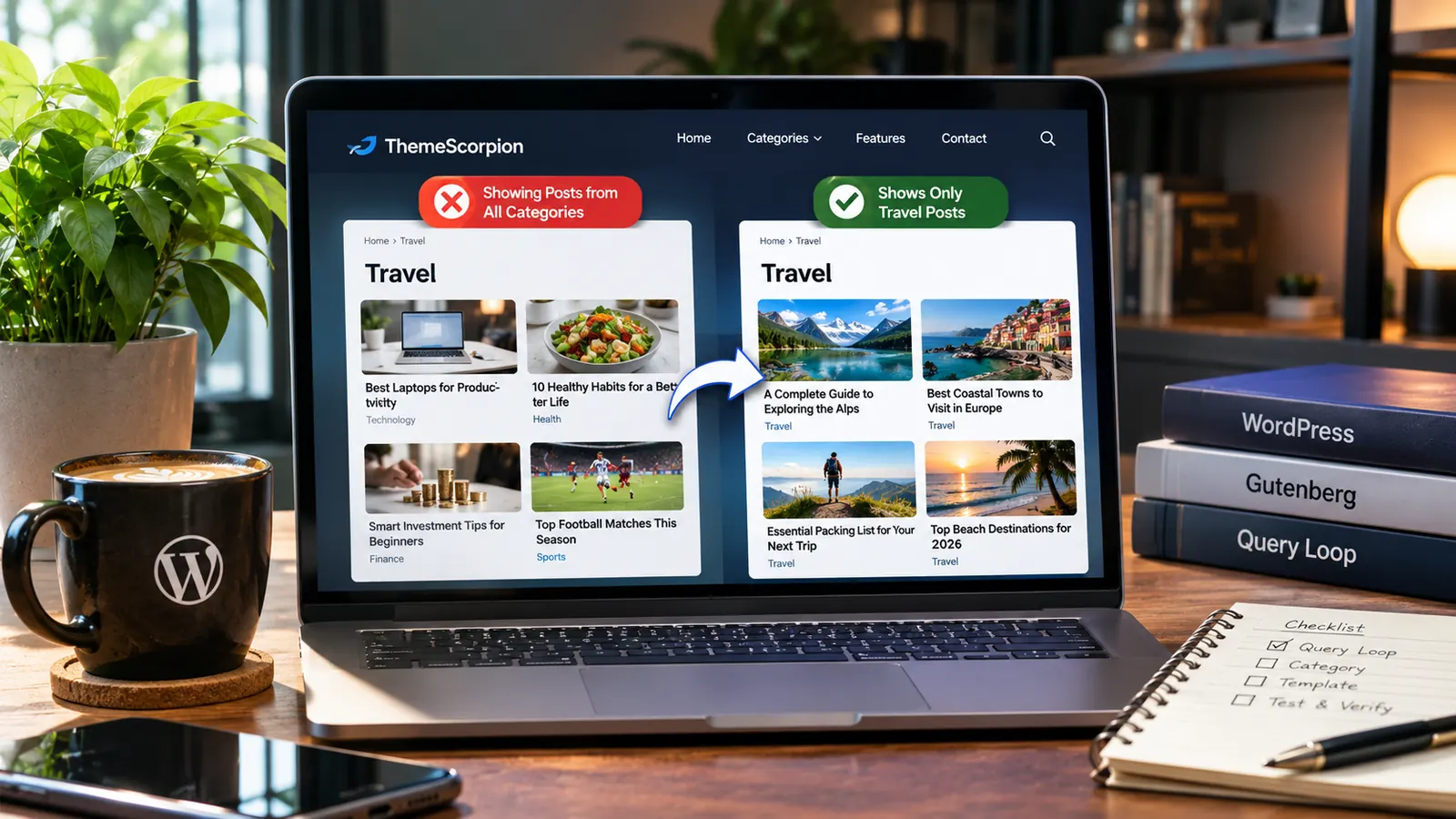
You open the Travel category on your WordPress site, but the page includes technology, business, and sports posts. Worse, every category might show exactly the same articles. Before editing or reassigning posts, check whether the archive is following the category the visitor selected.
On a site using a WordPress block theme, the most useful first check is the Query Loop—the block that chooses and displays posts. A category archive can show unrelated posts if the Query Loop has been changed to Custom rather than following the current category.
Quick fix for a category archive (no coding needed): Go to Appearance → Editor → Templates, open the template used by the category, select its Query Loop, and check Query Type → Default. Save, then visit two different categories to confirm each shows its own posts. Do not apply this automatically to an ordinary page with a curated post list.
Skip to: Find the cause · Fix the Query Loop · Check categories · Check the menu link · Advanced checks.
1. First, identify what is actually wrong
Start with two category pages, such as Travel and Technology. Note the titles of two posts that clearly do not belong. Then use the table below to choose one test; avoid changing templates, categories, and plugins all at once.
| What you see | Where to start |
|---|---|
| Both category pages show the same posts | Check the archive Query Loop’s Default / Custom setting. |
| Only a few posts seem out of place | Check their category assignments. Posts can belong to more than one category, and parent archives normally include child-category posts. |
| The category link opens a page with a manually chosen post list | Check the menu destination. An ordinary page is not automatically a category archive. |
| You changed the archive template but nothing happened | Confirm which template WordPress is actually using. A more specific category template might take priority. |
| Page one works, but later pages show the wrong posts | Investigate pagination and any separate or builder-controlled queries. |
First no-code test: In the dashboard, go to Posts → Categories. Find the affected category, then choose View (often shown when you hover over its name). Compare the opened address with the category link in your site menu. If those links lead to different pages, investigate the menu before changing your post-query settings.
Before saving a template change: Record the template name and original Query Type, or make the change on staging first. Shared archive templates can affect several categories. A reversible, one-setting test is safer than rebuilding the template.
2. Fix the Query Loop in a block theme
Default follows the current archive query, so a Travel archive retrieves the Travel posts. Custom runs a separately configured list; without an appropriate category filter, it can display unrelated posts. Use Custom for an intentionally curated post section, not as a replacement for an archive’s normal query.
Step 1: Open the right template
- In your WordPress dashboard, open Appearance → Editor, then choose Templates. This is the Site Editor for block themes.
- Look for a Category, All Categories, or All Archives template, depending on what the theme provides.
- If there is a template for this specific category, inspect it first. Otherwise, inspect the broader archive template. More specific templates can take precedence.
Step 2: Select the Query Loop itself
- Open the template and click List View in the top toolbar. This displays the blocks that make up the template.
- Select Query Loop, not the Post Title, Featured Image, or Post Template nested inside it.
- Open the Settings sidebar if it is hidden, and make sure the Block settings are selected.
Step 3: Check Query Type
In the block settings, find Query Type. For a standard category archive that should change with the category being viewed, select Default. In older WordPress versions, you may instead see an Inherit query from template setting; turn it on for the same behavior.

Not seeing Query Type? Confirm that you selected the outer Query Loop block, not its Post Template. On a regular page or post, the editor may hide inheritance controls because there is no category archive query to inherit. Do not treat that as a broken setting; a separate page with handpicked posts typically needs a Custom query.
Step 4: Save and check the public result
- Save the template and open the affected category in a separate browser tab.
- Confirm that the unrelated posts you identified earlier have disappeared, unless they legitimately belong to the category or one of its children.
- Open a different category and make sure it shows its own posts, not a copy of the first category.
- If there are multiple pages of posts, test page two. If the public site differs from the editor, compare a logged-out view and check caching later in this guide.
If these checks pass, stop there. You do not need to regenerate thumbnails, change permalinks, or add code.
What we reproduced in a controlled WordPress test
To check the behavior rather than assume it, we rendered the real core/query and core/post-template blocks in WordPress 7.1.4. We created two temporary categories, Travel and Technology, with two private test posts in each. A category-specific query supplied the archive context; the separate Custom query had no category filter. Both were limited to those four test posts for a controlled comparison.
| Query Loop test | Posts WordPress actually returned |
|---|---|
| Travel archive + Default | Coast Walks; Mountain Trails (2 Travel posts) |
| Travel archive + Custom, no category filter | Coast Walks; Mountain Trails; Browser Guide; Password Tips (all 4 posts) |
| Technology archive + Default | Browser Guide; Password Tips (2 Technology posts) |

What this proves: The Custom Query Loop did not automatically follow the Travel category, while Default used the category-specific query. It does not prove that every incorrect archive has this cause. This was an isolated server-side block-rendering test, not a published category page; we deleted the private test posts and categories afterward. Other themes, plugins, and template changes can produce different results.
3. Check posts assigned to more than one category
Not every unexpected article is evidence of a broken query. WordPress allows you to assign a post to several categories. A story about taking photographs on holiday might belong to both Travel and Photography, so it can legitimately appear in both archives.
To check, go to Posts → All Posts, open the unexpected post, and inspect its Categories settings. Remove an assignment only if it was actually a mistake.
Parent categories normally include child-category posts
Suppose your categories are Travel → Budget Travel and Travel → Travel Photography. A post assigned to Budget Travel can appear under the broader Travel archive. WordPress normally includes child-category content in the parent archive.
Open Posts → Categories and review the Parent field before assuming the category list is incorrect. Excluding descendant categories is a different, more specialized requirement—not a reason to switch every Query Loop to Custom.
4. Make sure the menu opens the real category archive
A navigation item named “Travel” could point to the actual Travel archive, or to an ordinary WordPress page named Travel. Both can have the same heading, but WordPress treats them differently.
For example, example.com/category/travel/ is a common archive URL, while example.com/travel/ might be a separate page. These URLs are only illustrations; sites can customize their permalink structures.
- Open Posts → Categories and select View for the affected category.
- Open the Travel link from your website’s navigation.
- Compare the actual destinations and their post lists.
- If the navigation points to the wrong place, edit the menu item to link to the correct category archive. Do not change the Query Loop to solve a link error.
5. When a Custom Query Loop is the right choice
Imagine a magazine homepage with a small section named “Latest Technology Stories.” That section is not itself a category archive. It needs a deliberately selected list, so a Custom query with an appropriate category filter can make sense.
For an independent homepage section, select its Query Loop and choose Custom, then look for Filters or Taxonomies → Categories, depending on the WordPress version. Choose Technology, for example, and verify that the preview and public page show the intended articles.

Important: Do not configure one fixed category on a shared category-archive template unless you really want every archive using that template to show the same category. Use Default when an archive should follow the visitor’s current category.
For an example of building a homepage with WordPress blocks, see our magazine homepage guide. If you are unsure which editor your theme uses, read our Site Editor versus Customizer guide.
6. Check whether a different template is overriding your changes
WordPress follows a template hierarchy: a category-specific template can take precedence over a general Category or Archive template. For block themes, go back to Appearance → Editor → Templates and look for a template dedicated to the category that is misbehaving.
Inspect the Query Loop in that template. Note its original settings before editing, because a category-specific layout may be intentional.
For a theme installed from outside WordPress.org, the exact editor screens and template names can differ. If you cannot identify the active template, consult the theme documentation rather than changing every available template.
7. What if Appearance → Editor is missing?
You may be using a classic theme. Such themes commonly use Appearance → Customize, a theme options panel, or PHP templates rather than the full Site Editor.
- First, open the affected archive from Posts → Categories → View and verify the category assignments.
- Check the theme’s blog, archive, category, or post-list settings for manual category filters.
- If the theme has no relevant control, check its documentation or ask support which template renders the archive.
- If code changes are needed, test them in a child theme or staging site. Avoid modifying WordPress core files or a parent theme directly.
Classic WordPress can use template files such as category.php, archive.php, and index.php. These are useful clues for developers, not files beginners need to edit.
8. If page one is correct but page two is wrong
Open the affected archive’s second page and refresh it. Are the wrong posts still there after a full reload, or do they appear only when the list updates dynamically after clicking Next? That distinction helps identify whether the problem belongs to the archive query or to the pagination behavior.
The Query Loop block has a Reload Full Page option under its advanced settings. WordPress normally enables it by default. If it was disabled and the failure only happens during dynamic pagination, compare the behavior with a full page reload on a safe test site. Changing this option is not a general solution for a Query Loop that ignores its archive category.
Also check whether your page contains more than one post list. Pagination controls can belong to a different Query Loop than the one you expected. If you use Elementor, Bricks, or another builder, its archive and pagination settings may operate differently from the core WordPress Query Loop.
Do not recategorize posts or change the site’s permalink structure merely because an AJAX pagination request displays unexpected posts.
9. Optional advanced checks: caching, plugins, and query code
If the settings are correct but the public page still displays old results, test the affected URL in a logged-out or private browser window. Confirm that the template change was saved, then clear only the relevant cache through your host or caching plugin if necessary.
For developers: know which query you are changing
For developers, pre_get_posts can modify a classic archive’s main query, while query_loop_block_query_vars modifies separately configured Query Loop block queries. They are not interchangeable, and the block-query filter may behave differently in the editor preview than on the public page. Identify the affected query before changing code.
Do not paste generic PHP fixes into the live site. Make a staging copy, identify the specific query being altered, and test one change at a time. The WordPress main-query hook and Query Loop query filter references are better starting points than a copied code snippet that may target the wrong loop.
If the failure began after a plugin or theme update, record the affected versions and reproduce the problem on staging before testing a conflict. Avoid disabling production plugins blindly.
10. Verify the result before calling it fixed
- At least two category archives display the expected posts.
- Multiple-category assignments and child categories have been accounted for.
- Menu links open the intended archives or purpose-built landing pages.
- The correct template, not merely an unused archive template, was edited.
- Pagination works on all available pages, including after a full reload.
- Logged-out visitors and mobile users see the intended post lists.
- Any shared-template change has been checked on other affected archives.
Make one adjustment at a time and revisit the original symptom after each change. If you cannot reproduce the problem consistently, note the affected URLs, screenshots, WordPress/theme versions, and whether it happens only while logged out.
Frequently asked questions
Why does my WordPress category page show posts from every category?
One common cause is a Query Loop set to Custom in an archive template, so the list is no longer following the category being viewed. A wrong menu destination, post assignments, template overrides, or another post loop can create similar symptoms.
Should I use Default or Custom in the Query Loop?
Default is generally appropriate for an archive meant to follow the visitor’s category. Custom is useful for a deliberately selected post list, such as a category section on a homepage.
Where is “Inherit query from template”?
WordPress simplified Query Loop settings starting with version 6.7. Current documentation describes the equivalent idea under Query Type → Default / Custom. The labels can vary by installed version.
Why does a post from a subcategory appear in its parent category?
WordPress normally includes child-category posts in the parent archive. Review category hierarchy and assignments before treating that as a bug.
Does Default work on an ordinary WordPress page?
Not in the same way as on a category archive. An ordinary page does not supply a current category archive query, so use an appropriately configured Custom query when you want to display a particular category there.
What if my theme does not have the Site Editor?
Start with the classic theme’s archive settings, category assignments, and theme documentation. Developers may need to inspect the theme’s category templates or custom queries.
Why are category results wrong only after pagination?
That can involve the query associated with the pagination controls, dynamic requests, caching, or a third-party builder. Compare a full reload with dynamic navigation before changing the content itself.
The simplest reliable approach
If unrelated posts appear, first confirm you are viewing the real category archive. Then check the active template’s Query Loop: Default generally follows the current category, while a carefully filtered Custom query can be appropriate for a separate landing page. If results remain wrong, check post assignments and category hierarchy before touching code.
Sources, testing and image notes
Publisher and technical checks: This guide is published by ThemeScorpion. The Query Loop explanation was checked against the current WordPress.org documentation and a controlled WordPress 7.1.4 server-side rendering test conducted on November 7, 2026. It used four private temporary posts and two temporary categories, all removed after the test. The results demonstrate the specific Default-versus-Custom behavior, not all possible theme or plugin configurations.
- WordPress: Query Loop block documentation — current Query Type, settings, filters, and pagination.
- WordPress: Template Editor — editing and managing templates.
- WordPress: Posts → Categories — category assignments and hierarchy.
- WordPress Developer Resources: Template hierarchy — how WordPress selects templates.
- WordPress Developer Resources: pre_get_posts — modifying the main query.
- WordPress Developer Resources: query_loop_block_query_vars — modifying Query Loop block queries.
Image provenance: The featured cover is a conceptual category example, not a real WordPress administration screenshot. The two editor-instruction figures are editorial crops from genuine WordPress.org documentation screenshots. The query-test comparison illustrates actual recorded outputs of the controlled experiment described above, rather than showing a public page or fabricated dashboard. Editor labels may differ by WordPress version and theme.