
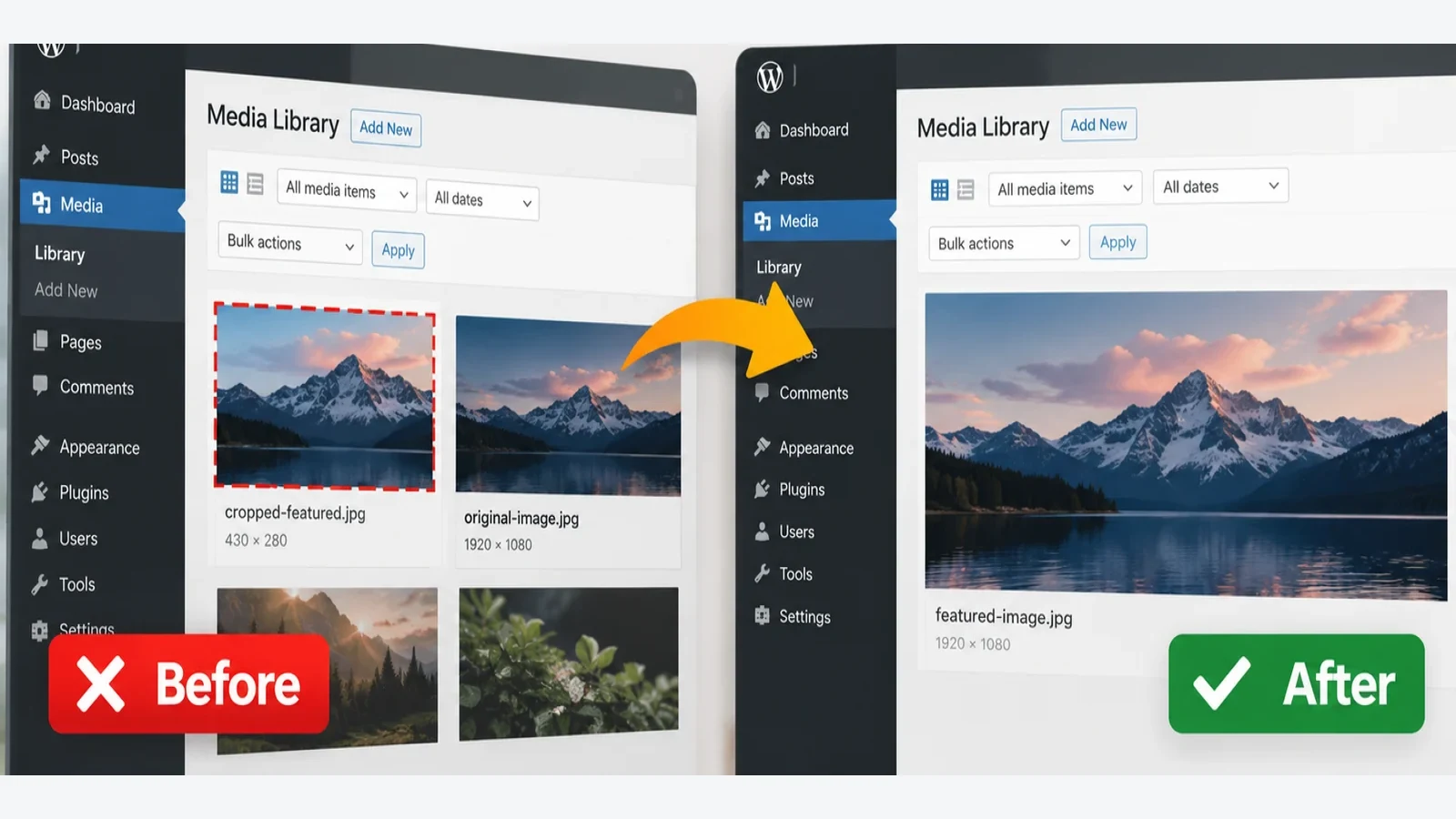
WordPress featured image cropped or cut off? The image in your Media Library can be perfectly fine while the blog page cuts off a face, headline, or logo. Before changing any settings, compare the original with the image file your browser actually displays.
Here is the quickest diagnosis: If the image file opens in a new tab with its edges already missing, WordPress or your theme may have made a smaller, cropped copy (called a thumbnail). If the file looks complete in that tab but part disappears on the webpage, the page layout is probably cutting it off. The two problems need different fixes.
Choose your path: New to WordPress? Start with the simple checks in Step 1, then follow the block-theme or classic-theme instructions. Try the no-code workaround before changing any files. Have some experience? The optional CSS and thumbnail regeneration sections explain the deeper fixes. You do not need to use those advanced sections to follow this guide.
The before-and-after example below uses real files from a ThemeScorpion article. Its original 1600 × 900 upload was correct, but the generated 960 × 600 and 720 × 540 variants cut off important content.
Jump to: Find the cause · Block themes · Classic themes · CSS (optional) · Regeneration (advanced) · Real example · FAQs.
1. Find out exactly where WordPress is cropping the image
Do this first; it usually saves the most time. You only need the public page where the image appears wrong and access to your WordPress Media Library.
- Open the original upload. In your dashboard, go to Media → Library, select the photo or graphic, and open its original file URL in a new browser tab. Check that the headline, subject, or important edges are visible. Media Library interfaces vary by WordPress version.
- Open the image shown on the website. Visit the blog page or post where the picture looks wrong. On a computer, right-click the picture and select Open image in new tab if your browser offers it. You should see only the image file, without the surrounding webpage. If that option is missing, continue with the next checks; the optional developer-tools method is explained below.
- Compare what you can see. Is a face, word, or object missing from the image file itself, or only from the webpage? A filename such as
photo-720x540.webpcan indicate a smaller copy generated by WordPress, but not every theme names its files this way. - Repeat on mobile. If desktop looks fine and mobile cuts off the image, there may be a responsive template or CSS rule involved rather than a damaged original upload.
Optional check for experienced readers: Right-click the affected image and select Inspect. With its <img> element selected, enter $0.currentSrc in the browser’s developer console to see the image URL actually loaded. This helps when WordPress supplies different image sizes to different screens through srcset. Skip this if you are not comfortable using developer tools.
CASE 01
Original upload is complete, but the standalone thumbnail is cut off
Likely cause: A theme-defined hard crop or image processor generated an altered file
Next check: Look for the blog-image or thumbnail settings in your theme. If they are unavailable, ask theme support which image size the blog uses
CASE 02
The standalone thumbnail is complete, but the page cuts off its edges
Likely cause: A fixed-ratio frame, a constrained height or CSS clipping
Next check: If you use the Site Editor, check the image block’s Aspect Ratio and Scale. Experienced users can also inspect the CSS
CASE 03
Only mobile or one page template looks wrong
Likely cause: A responsive rule, a different selected file or a template-specific size
Next check: Compare the same post on desktop and mobile, then check whether your theme uses a different card layout
CASE 04
The old crop returns after a correction
Likely cause: A cached image or a regenerated derivative is still being used
Next check: Check the image file again, then clear the relevant site or CDN cache if it is already corrected
Before editing: keep a copy of the original image and back up your theme or staging site. If a theme change affects hundreds of images, test with one attachment before applying changes across the Media Library.
2. Fix a cropped featured image in a block theme
Use this section if you have Appearance → Editor in your dashboard. A block theme lets you adjust page layouts in WordPress’s Site Editor. A Post Featured Image block displays the picture attached to a post. On a blog page, that block may sit inside a Query Loop (the group of blocks that lists your posts). If your theme uses Appearance → Customize instead, the next section is a better starting point.
- Open Appearance → Editor. Go to the relevant template, such as a single-post template or the template displaying your blog archive. Exact names depend on the theme.
- Select the image in the template. If WordPress selects a larger section instead, open List View (the list of blocks in the editor), and select Post Featured Image there.
- In the block settings, look for Aspect Ratio (the image’s shape), dimensions, and Scale if available. Try Original to keep the image’s natural shape, or Contain to display the whole image inside a fixed frame. Cover fills the frame but may cut off the edges. The available settings vary by theme and block.
- Preview a post with an image containing important details near the edge. Also check the blog archive and a narrow mobile width.
- Save only after reviewing the result. Editing a shared template can change the presentation of many posts, not just the one you opened.
Important: these controls can change how an image is displayed, but they cannot bring back content missing from a thumbnail file already cropped on the server. If opening the actual thumbnail URL shows the cut-off result, use the next section too.
Official reference: WordPress Post Featured Image block. WordPress also explains that image Scale: Cover clips, while Contain shows the entire image.
Building a magazine-style homepage? Our WordPress magazine homepage guide shows how Post Featured Image blocks fit into a native Query Loop grid.
3. Fix a theme-generated cropped thumbnail in a classic theme
Use this section if your site has traditional theme settings, often under Appearance → Customize or a theme-specific menu. A classic theme may request a 720 × 540 pixel image for its blog cards even though you uploaded a 1600 × 900 image. WordPress can make that smaller copy by resizing and cutting off the edges to fit the card’s shape.
That behavior is not automatically a bug: it works for photographs when a consistent card grid is needed. It is less suitable for graphics with words, logos, or important objects near the edge.
- Check the theme documentation or settings. Look for blog card image aspect ratio, thumbnail size, image crop, post image style, or featured image display. Some themes put these controls in Appearance → Customize; others have their own settings panel. Not every theme exposes a control.
- Compare what the theme requests. If an image file is physically cropped, changing its width with CSS will not restore lost pixels. The theme needs to request a suitable proportional image, or a replacement derivative must preserve the original composition.
- Do not edit a parent theme casually. For a custom theme or child-theme project, a developer can change the image size registration and the template’s chosen size. Altering one without checking the other may not change what visitors see.
- Verify several layouts. A single post, archive card, related-post card, and mobile menu/feature section may use different image sizes. Fixing one doesn’t necessarily fix the others.
WordPress’s add_image_size() documentation explains the difference between proportional image sizing and hard cropping. WordPress also lets themes register custom image sizes, which the frontend can choose when rendering an attachment.
What if your theme has no cropping option? Start with the no-code workaround below. If it does not help, contact theme support with a link to the affected page and the original image. More experienced site owners can include the generated thumbnail URL and affected template. A child-theme change is another option for developers; do not change WordPress’s media settings blindly because your theme may use its own image sizes.
Easy workaround when your theme has no crop setting
For a graphic containing text, the simplest safe fix may be to adjust its composition rather than edit WordPress code. Many themes intentionally crop blog cards to a fixed shape:
- Find the card’s shape. A 720 × 540 thumbnail is a 4:3 frame. A centered hard crop from a wide 16:9 original can remove parts of the left and right edges.
- Move important elements inward. In your image editor, leave more background space around the heading, logo, or main subject. Preparing a separate 4:3 design is often the cleanest choice for a 4:3 card.
- Test on one post. Upload the revised design as a new image, set it as that post’s featured image, then inspect the archive, single post, and mobile view before updating anything else.
This keeps the image safe within the theme’s crop but does not change the cropping rules. The single-post template may use another shape. If the theme supports separate card and post images, use those controls instead of making one graphic serve every layout.
4. Optional: when the image file is fine but CSS cuts it off
This section is for readers comfortable with website styling. If the whole image appears when opened on its own but only the center shows on the page, your theme’s CSS (its design rules) may be clipping it. In the browser’s Inspect panel, look for a fixed image height, a fixed aspect ratio, overflow: hidden on the surrounding box, or object-fit: cover.
With object-fit: cover, the browser scales the image until the frame is full, then clips the excess. object-fit: contain shows the full image, but may leave space above and below or at the sides. Neither option rewrites the actual file.
Option A — let the image keep its original proportions. This is usually the cleanest choice when your cards do not need a fixed image height. After identifying the correct image selector in the browser’s Inspect tool, test:
/* Illustration only: replace this with your theme's actual selector. */
.your-post-card img {
  display: block;
  max-width: 100%;
  width: 100%;
  height: auto;
}
Option B — keep a fixed image frame without hiding any edges. If your theme needs equal-height cards, a scoped object-fit: contain rule can fit the full picture inside the frame, although empty space may appear:
/* Illustration only: do not apply to every img on your site. */
.your-post-card img {
  display: block;
  width: 100%;
  height: 240px;
  object-fit: contain;
  background: #f6f7f9;
}
These are examples, not universal CSS fixes. A theme may set dimensions on the wrapper, use a background image, or override these rules with a more specific selector. A 240-pixel frame also may not suit mobile screens. First try the theme or block settings; if changing CSS, test the actual affected template on desktop and mobile. If you deliberately keep object-fit: cover, adjusting the focal position can move the crop, but it cannot show every edge while filling a mismatched frame.
Reference: MDN’s object-fit guide.
5. Advanced: should you regenerate WordPress thumbnails?
Only after the underlying image-size configuration is correct. Regeneration creates new derivatives using the registered sizes and crop rules currently active. If those rules still demand a hard crop, regenerating may reproduce exactly the problem you are trying to solve.
Regeneration can help if you changed a theme’s image-size settings and existing uploads still use older derivatives. It cannot fix an image whose only source file has already been edited and cropped, and it does not automatically override a template that keeps using object-fit: cover.
Advanced option for site administrators with command-line access: WP-CLI (WordPress’s command-line tool) provides commands such as:
wp media image-size
wp media regenerate 123 --image_size=your-theme-size --skip-delete
Here 123 is an example image ID, not a command to run unchanged. Replace your-theme-size with a registered size from the first command. --skip-delete helps retain older thumbnails while testing, but regenerated files can still change what visitors see. Back up your media first and test on a staging site if possible. If you do not use WP-CLI, skip these commands. A maintained regeneration plugin supported by your host or theme may provide a graphical alternative.
Reference: Official WP-CLI media regeneration documentation.
6. A real example: our featured image was cropped even though the upload was correct
We encountered this issue while finishing a ThemeScorpion article about replacing a WooCommerce downloadable file. Its featured image included text and a comparison graphic, so clipping the edges made the artwork look incomplete.
These measurements come from the stored WordPress attachment and saved thumbnail metadata, not a simulated WordPress interface:
- Original upload: 1600 × 900 WebP, complete composition.
- Post image variant: 960 × 600 WebP, with content cut away by a generated hard crop.
- Blog card variant: 720 × 540 WebP, with a different crop causing more severe clipping.
- Correction: we generated replacement variants that preserved the entire original composition within the same required output dimensions, then verified which files the page served.
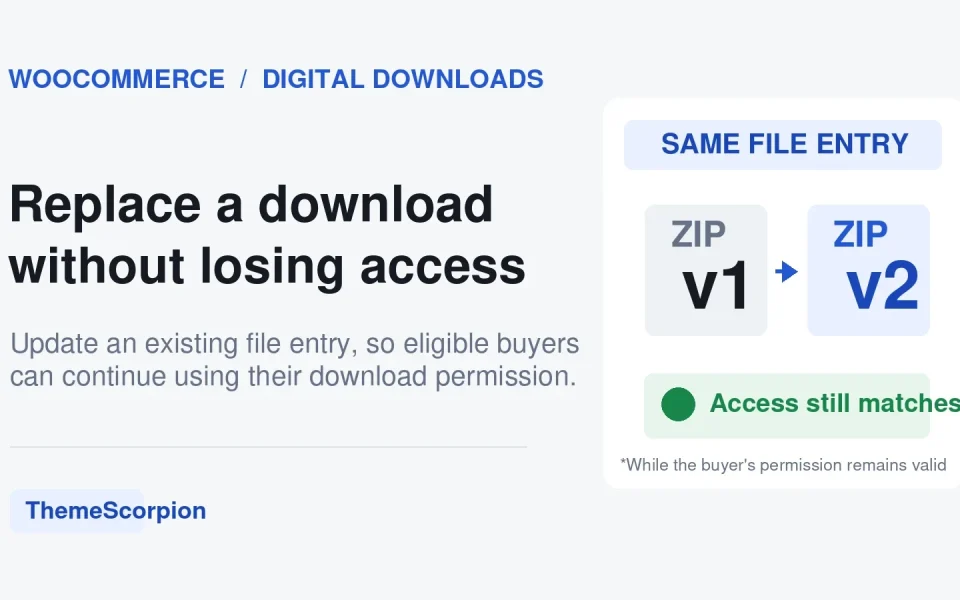
Important text and graphics at the edges are clipped. Open the image to inspect the file itself.
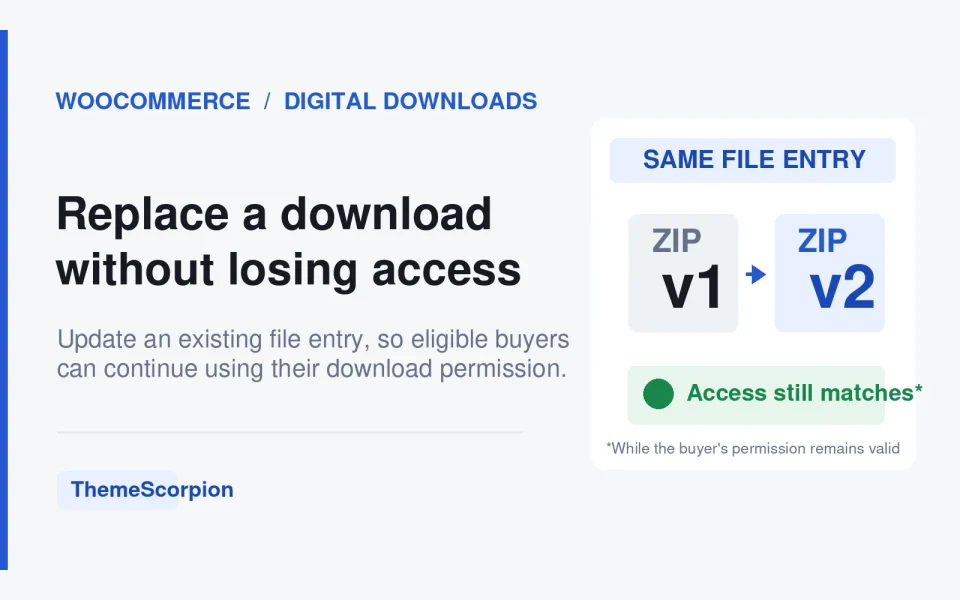
The outside dimensions stayed the same. The full original artwork is now visible inside the frame.
Both images are actual WordPress-generated files from our site, not mockups. Select either image to examine it at full resolution.
What this proves: the unwanted crop was already present in the generated image file. Tweaking object-fit on the article page would not have restored the missing parts. The corrected variant visibly retained them.
What this does not prove: it was a targeted media-file correction, not a demonstrated permanent change to the theme’s registered image-size rules. A later bulk regeneration could reproduce the old crop if the same hard-crop settings remain. We did not test the instructions above on every third-party theme or mobile device.
Practical lesson: if your featured image contains text, verify the actual image file used by your theme before spending time adjusting page CSS. For important editorial graphics, consider a separate layout-safe thumbnail design if your theme intentionally uses tightly cropped cards.
7. Check the fix in the places readers actually see it
Use this checklist on a staging site or after a single-image change. It takes less time than finding out later that only the post page was fixed.
- Single post: the featured image is complete, not stretched, and appropriate for the article width.
- Blog archive: the card thumbnail retains any essential text or subject. Check more than one article card.
- Related posts: small card variants may differ from the main listing.
- Mobile: the important subject remains visible; there is no sideways overflow or unusually tall empty image frame.
- Image file: open the selected thumbnail directly and confirm you are seeing the latest derivative, not a cached old version.
- Cache: if the browser still shows an earlier file, clear the relevant site/CDN image cache after confirming the WordPress HTML points to the correct URL.
If the image looks correct on the page but Facebook or another social platform still shows an old one, that is a separate social preview issue involving Open Graph settings and platform caching. Do not treat it as evidence of a WordPress thumbnail crop.
Frequently asked questions
Why does my WordPress featured image look fine in Media Library but cropped on the blog page?
The blog template may request a generated thumbnail with a different aspect ratio, or display a complete file inside a cropped frame. Compare the original file, the browser-selected thumbnail URL, and the page layout to identify which one.
Does changing the featured image size in Settings → Media fix a theme’s blog thumbnails?
Not necessarily. Those settings control standard WordPress sizes. Your theme may register and request its own image sizes, so look at the theme documentation or the image-size list first.
Does object-fit: contain stop WordPress from cropping?
It can stop the browser from clipping a complete image inside a frame. It cannot restore pixels that were physically removed when a thumbnail file was generated.
Will regenerating thumbnails remove text cropping?
Only if the newly registered sizes or crop rules preserve that text. With unchanged hard-crop rules, regeneration can create the same cut-off image again.
Can I fix one featured image without redesigning the whole theme?
Often. You can use a separate image composition with a generous safe area, choose an appropriate full or proportional size if the template supports it, or ask a developer for a scoped derivative replacement. Test the blog card and the single post afterward.
Sources, evidence, and testing notes
The current instructions were checked against WordPress’s Post Featured Image block documentation, WordPress Image block display controls, the WordPress developer reference for custom image sizes, the WP-CLI regeneration reference, and MDN’s object-fit explanation.
The case study uses actual ThemeScorpion attachment files and WordPress metadata inspected in October 2026. We verified the original file dimensions, the previously cropped versions, and the revised files on our own website. We have not performed a separate live browser test across every block theme, classic theme, or mobile device; editor wording and available controls can differ by installed theme.
If you are choosing a theme for a new site, our 20-minute WordPress theme pre-buy audit includes what to inspect before committing to a layout. And if your homepage looks wrong after installing demo content, see our demo-import troubleshooting guide.

