If you have 20 minutes to evaluate a WordPress theme, spend almost none of that time admiring the homepage. Test how it edits, how it behaves with real content, what it depends on, what happens on mobile, and what you will lose if you replace it later.
That is the difference between choosing a theme and choosing a demo.
This guide is a practical pre-purchase audit. It is based on the checks we use while inspecting and packaging WordPress themes at ThemeScorpion, including block themes, classic themes, editorial themes, and WooCommerce products. Our own products are identified clearly when used as examples.
Updated October 2026 · Package examples inspected in October 2026 · About ThemeScorpion
The 20-minute WordPress theme audit
If you only want the short version, run these checks before you buy or install a theme.
| Time | Test | What you are trying to learn |
|---|---|---|
| 2 min | Define the site’s job | Whether the theme was designed for the kind of site you are actually building. |
| 3 min | Find the editing model | Site Editor, Customizer, page builder, or a proprietary workflow. |
| 3 min | Use the full demo | Whether posts, archives, search, navigation, products, and secondary pages are as polished as the homepage. |
| 3 min | Stress mobile | Whether menus, search, cards, sticky elements, and long titles still work at phone width. |
| 3 min | Check performance | Whether the demo shows unnecessary scripts, fonts, media, or layout instability. |
| 2 min | List dependencies | Which plugins, builders, companion tools, or paid extensions are required to reproduce the advertised experience. |
| 2 min | Read maintenance evidence | Current version, changelog, requirements, documentation, support, and update path. |
| 2 min | Run the exit test | What content and functionality remains usable if you change themes later. |
Do not turn this into a scoring contest. A theme can be the right choice even when it has trade-offs. The goal is to discover those trade-offs before the site depends on them.
1. Start with the job, not the design
Write the site’s main job in one sentence before opening a theme marketplace.
- “Publish long-form articles with a strong editorial reading experience.”
- “Sell electronics where search, filtering, and comparison matter.”
- “Run a small business site my team can edit without a developer.”
- “Build a WooCommerce store that works well on mobile.”
Then split your requirements into three groups:
- Must have: the site cannot do its job without it.
- Useful: it saves work, but a plugin or different workflow could provide it.
- Decoration: it looks impressive in the demo but does not materially help the site.
If a theme wins mostly because of the third group, it is probably winning the wrong test.
2. Identify the editing model before you buy
Two WordPress themes can look similar in a screenshot and feel completely different to maintain.
A block theme can expose templates, headers, footers, typography, colors, and other site-wide design decisions through the WordPress Site Editor. WordPress explains this model in its block theme documentation.
A classic theme may use the Customizer, widgets, theme options, or standard PHP templates. Other themes depend heavily on Elementor or another page builder.
Before buying, find the answer to these questions:
- Where do I edit the header and footer?
- Where do I change typography and global colors?
- Can I change the main templates without editing PHP?
- Does the theme require a builder or companion plugin?
- Is that dependency optional, free, paid, or bundled?
- What happens to the content if I stop using it?
If you are deciding between those approaches, our guide to whether you need Elementor for WordPress compares theme-only, Site Editor, and page-builder workflows.
What we found by inspecting our own theme packages
One reason generic “best theme” lists are not enough is that themes with similar marketing labels can have very different maintenance models. We inspected the actual installable packages of our current themes while maintaining the ThemeScorpion catalog. Here is what changes from product to product.
| Theme | Editing model | Package reality | What a buyer should notice |
|---|---|---|---|
| Northpeak 1.2.0 | Classic editorial theme with Gutenberg and Customizer controls | Theme package includes editorial layouts, reading tools, dark mode, related stories, and WooCommerce styling. | A good fit when publishing is the main job and you want a relatively direct WordPress workflow. |
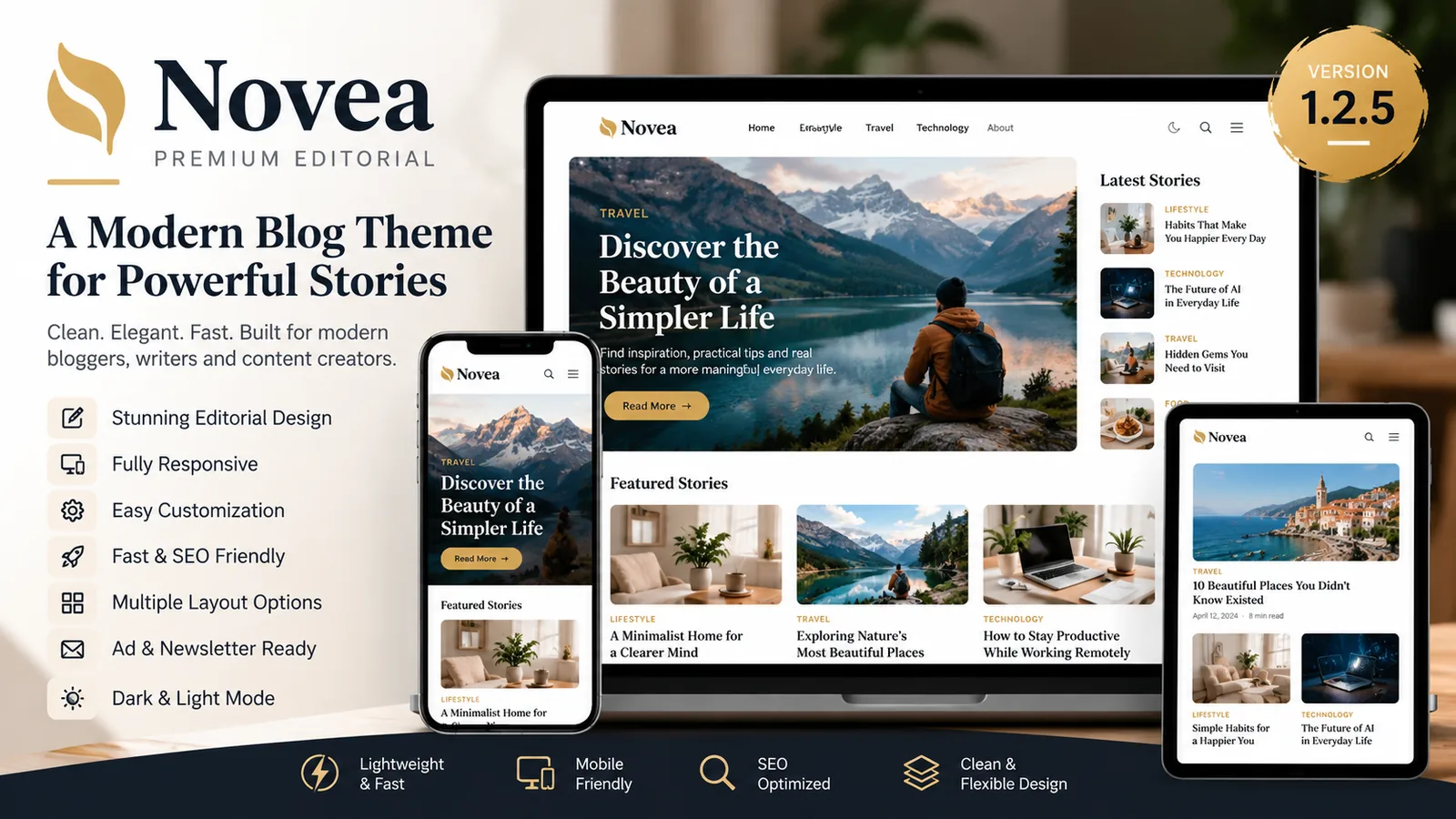
| Novea 1.4.35 | Customizer-led editorial workflow | Deep controls for typography, layout, sidebar behavior, archives, single posts, footer, and mobile presentation; no bundled external front-end library is required by the theme package. | The larger control surface is useful for publishers who want more editorial tuning, but it also means you should inspect the Customizer before committing. |
| Merova 1.4.1 | WooCommerce-focused classic theme | Includes shopper-facing systems such as predictive search, AJAX filtering, quick view, mini-cart, locally stored wishlist/comparison, and recently viewed products. | Those features are valuable only when product discovery is actually part of the store’s buying journey. |
| Veltrix 1.2.0 | Block theme / Site Editor | The complete bundle contains a theme, commerce companion plugin, optional child theme, setup material, and demo content. | The buyer must extract the complete bundle and understand which features come from WooCommerce, the theme, and the companion plugin. |
| Vellune 1.0.3 | Classic theme with extensive Customizer controls | 119 controls plus an optional companion, child theme, starter content, and documentation. | It suits someone who wants a large native control surface; a buyer who prefers fewer decisions may prefer a simpler package. |
These are our own products, so this table is not presented as an independent ranking. The useful point is the structural difference: “premium WordPress theme” does not tell you how the theme is edited, which pieces are optional, or how much of the experience comes from a companion plugin.
3. Test the live demo like a user, not a designer
The homepage is usually the most polished page in a theme demo. It is also the easiest page to overvalue.
Open the demo and deliberately leave the homepage. Test:
- a normal page;
- a long article;
- a category or archive;
- search results;
- the navigation and submenus;
- the 404 page if you can reach it;
- product and cart flows if the theme is for WooCommerce.
Then replace the demo in your head with your real content. Longer titles, different image ratios, more menu items, fewer products, less polished photography, and ordinary copy can expose weaknesses that a curated demo hides.
If a free edition or trial is available, a staging site or disposable test installation is even more informative because you can inspect the real editing interface instead of only the front end.
4. Stress the mobile layout instead of checking a “responsive” badge
A theme can technically respond to screen width and still be unpleasant to use on a phone.
At a narrow width, check:
- whether the menu opens, closes, and handles submenus reliably;
- whether search fits without horizontal overflow or browser zoom;
- whether buttons and links are comfortable to tap;
- whether long headings wrap cleanly;
- whether sidebars move below the main content in a sensible order;
- whether sticky bars cover navigation or purchase controls;
- whether product grids become excessively tall;
- whether text stays readable without manual zooming.
Use a real phone when possible. Browser responsive mode is useful, but touch behavior, mobile browser chrome, and actual reading comfort are easier to judge on a physical device.
5. Test performance, but do not buy a theme based on one PageSpeed score
A theme establishes part of the site’s performance baseline, but a demo score is influenced by hosting, caching, images, analytics, third-party scripts, and the demo’s content.
Use PageSpeed Insights on several representative demo URLs and look for patterns rather than one magic number.
Ask:
- Does a simple article page load a large amount of JavaScript?
- Are several font families or icon libraries loaded when they are barely used?
- Do images cause visible layout shifts?
- Does every page load a slider, animation library, or commerce script whether it needs it or not?
- Does the page feel stable and responsive while it loads?
WordPress’s Theme Handbook also recommends performance testing and optimized asset loading in its theme testing guidance.
Be cautious with articles that give a single universal “pass” score for every theme. A demo can score well and still be a poor fit for your stack, and a demo can score worse because of hosting or media choices that are not part of the theme itself.
6. Separate the theme from its dependencies
This is where many buying decisions become expensive later.
Write down every dependency required to reproduce the advertised experience:
- page builder;
- companion plugin;
- WooCommerce extension;
- slider or gallery plugin;
- demo importer;
- premium block library;
- vendor marketplace plugin;
- form or newsletter service.
Then label each dependency required or optional.
A companion plugin is not automatically a problem. In fact, moving non-design functionality out of the theme can improve portability. The problem is not knowing where the dependency line is until after purchase.
Also calculate the ongoing cost. A $20 theme that needs two paid extensions may be a more expensive commitment than a $60 theme that works with the tools you already have.
7. Check the controls you need, not the largest advertised number
“300 options” is not useful if the three things you need are hard-coded.
Check the actual controls for:
- logo and brand sizing;
- typography and line height;
- global colors;
- content width and spacing;
- header and navigation;
- archive layouts;
- single-post or single-product presentation;
- sidebar behavior;
- footer structure;
- mobile-specific settings that matter to your design.
Then judge organization as well as quantity. A smaller, predictable settings system can be easier to maintain than a huge panel of unrelated toggles.
8. If it is a WooCommerce theme, test the shopping journey
A store theme should not be judged mainly by its hero section.
Test:
- product search;
- category navigation;
- filters and sorting;
- product variation controls;
- product gallery behavior;
- cart and checkout presentation;
- account pages;
- mobile product discovery.
Features such as wishlist, comparison, quick view, and recently viewed products can be useful in a large catalog and pointless in a store with three products.

Our separate guide to WooCommerce product discovery goes deeper into search, filters, comparison, and mobile navigation.
9. Run a basic accessibility check yourself
You do not need to perform a complete accessibility audit to catch obvious problems before purchase.
Put the mouse aside and use the Tab key through the demo.
- Can you see keyboard focus?
- Can you open the navigation?
- Can you reach important controls in a logical order?
- Does content rely on hover alone?
- Are text and links distinguishable?
- Do forms have understandable labels?
- Does heading structure make sense?
WordPress’s theme accessibility guidance is a useful reference.
Do not treat “accessibility-ready” as a guarantee that the finished website will meet every requirement. Your content, plugins, forms, color choices, and future changes all affect the final site.
10. Read maintenance evidence before reading reviews
A theme is software, so look for evidence that it is being maintained like software.
Version information: Is the current version clearly identified?
Requirements: Are WordPress, PHP, and WooCommerce requirements stated where relevant?
Changelog: Do releases show bug fixes, compatibility work, and maintenance rather than only new design features?
Documentation: Can you find installation, customization, update, and troubleshooting guidance before needing support?
Support policy: What does support cover, where is it provided, and is there a defined support period?
License and included files: Is it clear whether the package contains a child theme, companion plugin, demo assets, or third-party material?
For example, we publish the ThemeScorpion documentation library separately from the product pages so buyers can inspect setup requirements before committing. Use that same standard when evaluating any vendor.
11. Run the exit test: what survives a theme change?
This is the check that receives the least attention and often matters most a year later.
If you switch themes tomorrow, what do you lose?
Posts, pages, WooCommerce products, normal block content, and other core WordPress data should not become unusable just because the design changes.
Be more cautious when a theme stores important content in proprietary shortcodes, owns business functionality unrelated to presentation, or requires a builder that leaves unusable markup when deactivated.
There is no rule that says every theme must be dependency-free. The goal is portability you understand.
Red flags that deserve a second look
- The homepage is polished, but archive, search, article, or product pages look unfinished.
- The sales page does not identify the current version or basic requirements.
- The demo depends on a builder or plugin that is barely mentioned.
- The theme claims universal compatibility without explaining what was actually tested.
- A large feature list mixes design, commerce, marketing, analytics, forms, and unrelated business tools into one package.
- You cannot find documentation until after purchase.
- The demo content is doing most of the visual work.
- You cannot tell what happens to your content if the theme is removed.
A final decision sheet
Before buying, write one line for each question:
- What job is this theme being hired to do?
- What is its editing model?
- Which features come from the theme and which come from dependencies?
- Does the full demo work with realistic content and mobile navigation?
- Is the performance baseline reasonable across more than one page?
- Can I control the parts of the design my project actually needs?
- Does the WooCommerce workflow work for my catalog, if relevant?
- Can I operate the important interface with a keyboard?
- Is the product actively maintained and documented?
- What are the support, update, and license terms?
- What remains usable if I change themes later?
If you can answer those eleven questions without guessing, you probably understand the product well enough to make a buying decision.
If your project is an editorial publication, try building the core layout before purchasing extra tools. Our WordPress magazine homepage walkthrough includes a tested, reusable Query Loop starter so you can judge whether your theme’s built-in editing workflow is sufficient.
Which type of WordPress theme should you shortlist?
- Editorial blog, journal, or magazine: prioritize typography, archives, category structure, article navigation, and long-form reading. ThemeScorpion examples include Northpeak, Novea, and Vellune.
- WooCommerce store: prioritize product discovery, product templates, mobile shopping, cart behavior, and the exact extensions your store needs. Merova is a classic-theme example.
- Store using the Site Editor: check which WooCommerce pieces remain native and which come from a companion. Veltrix is a block-theme example.
- Simple content site: avoid paying for commerce systems, builders, and effects you will never use.
Those links point to our own products. Apply the same audit to them that you would apply to any other vendor: open the preview, inspect the documentation, check requirements, and make sure the editing model matches your project.
As part of the mobile test, inspect dropdown labels, submenu arrows, and whether links actually respond to taps. Our mobile-navigation troubleshooting guide explains the most common failures and how to isolate them.
The best theme is the one you understand before installing it
A WordPress theme is not just a screenshot. It is an editing model, a dependency stack, a maintenance relationship, and a set of assumptions about the kind of site you are building.
A good buying decision leaves you knowing how the theme is edited, how it behaves on mobile, what it loads, what it depends on, what support exists, and what happens if you eventually leave it.
If you are comparing real options now, browse the ThemeScorpion WordPress themes and run this 20-minute audit against each one before choosing.