WooCommerce sidebar not showing on your Shop page? First identify which template builds the shop. The fix is different for a classic theme, a block theme and an Elementor Pro archive. Changing widgets on the wrong template will not restore the missing sidebar.
Quick answer: For a classic theme, check the theme’s Shop sidebar layout and assigned widgets. For a block theme, edit the Product Catalog template and check its Product Filters block. If you use Elementor Pro, inspect the active Product Archive template and its display conditions.
Start here: what exactly is missing?
Open your main Shop page and one product category page. Compare their layouts before changing any settings. These symptoms point to different causes.
Swipe the table horizontally to see both columns.
| What you see | First thing to check |
|---|---|
| No sidebar column at all | The theme’s Shop layout or the active archive template. Classic · Block |
| An empty sidebar column | Assigned widgets or the Product Filters block. Check filters |
| Sidebar on categories, but not Shop | Different templates or Elementor display conditions. Compare archives |
| Sidebar missing only on a phone | Filter overlay or responsive visibility settings. Check mobile |
| Filters visible, but results unchanged | Product Collection query context and actual product data. Test filters |
Which editor does your store use? A classic theme often exposes Appearance → Widgets and a theme-specific layout panel. A block theme generally uses Appearance → Editor. Elementor Pro can assign a Product Archive template independently of either theme’s general sidebar settings.
Before modifying a live store, save a backup or use staging. Make one change at a time; that makes it easier to identify the fix and undo a mistake.
Fix the Shop sidebar in a classic theme
Use these steps when your theme provides a Shop or WooCommerce sidebar through widgets or theme layout settings. The controls are theme-specific. WooCommerce itself does not give every classic theme one universal “show sidebar” switch.
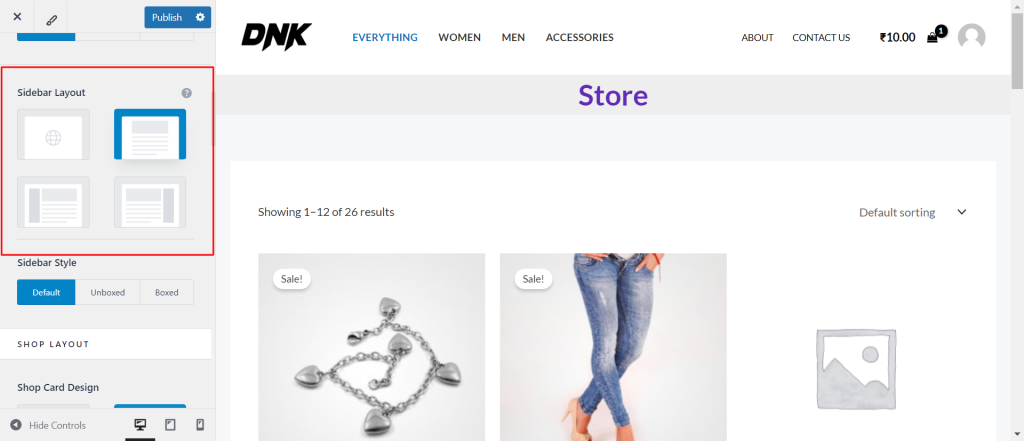
Example: Astra Pro. Astra documents Appearance → Customize → WooCommerce → Product Catalog → Sidebar Layout, with Default, No Sidebar, Left Sidebar and Right Sidebar choices. If the main Shop is full width, choose Left or Right, then check the widget area used by Astra. A changed layout without widgets can still leave an empty column. Refer to Astra’s current documentation for the setting locations in your version.
- Find the actual Shop layout setting. Open Appearance → Customize or your theme’s own settings and look for a section named WooCommerce, Shop, Product Archive, or Sidebar Layout. If the archive uses No Sidebar or Full Width, select the intended sidebar layout. The regular WooCommerce Product Catalog Customizer controls may deal with product display and sorting, not sidebar placement.
- Inspect the registered widget area. In Appearance → Widgets, look for WooCommerce Sidebar, Shop Sidebar, Primary Sidebar, or the name specified by your theme. Confirm that the area actually contains the filter or navigation widgets you expect.
- Check the assigned area, not just its contents. Some themes let you populate a sidebar that is never selected for the Shop archive. Compare the area named in the layout settings with the area you edited.
- Save, open Shop and retest. Visit the actual Shop URL in a private browser window. If the sidebar still does not appear, consult the theme documentation for separate Shop and product-category archive layouts.
If Appearance → Widgets is absent, do not force this method. The store may use a block theme or your account may lack permission to edit the relevant settings. Our Site Editor vs. Customizer comparison explains the difference.
Expected result: the chosen widget area appears beside the Shop product grid, without changing which products are listed.
Fix the Shop sidebar in a block theme
In a block theme, the assigned Shop page is usually rendered by the Product Catalog template. Editing the regular page content often has no effect because the archive template takes precedence.
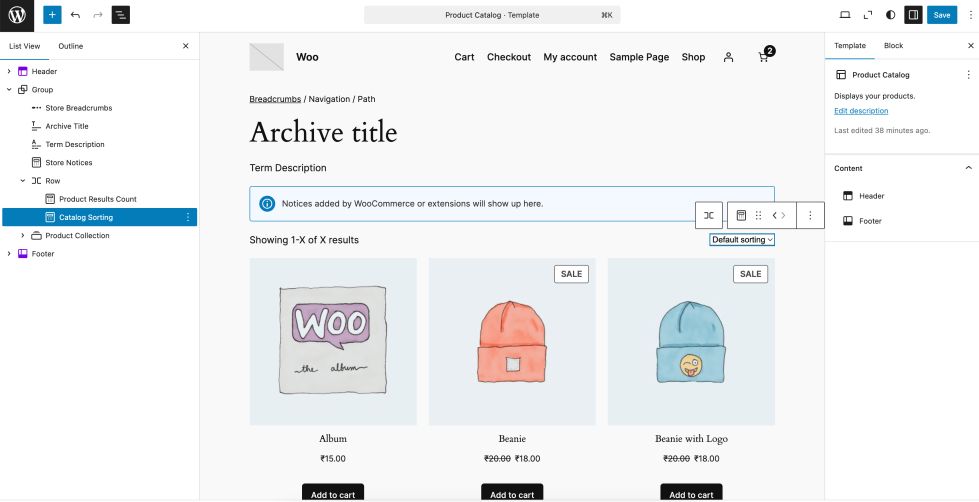
- Open the right template. Go to Appearance → Editor → Templates → WooCommerce → Product Catalog. Depending on the Site Editor version, Templates may appear under Design.
- Inspect List View. Find Product Collection, which supplies the product grid. If it spans the full width, check whether there is a Columns or Row layout that could hold filters alongside it.
- Place the parent Product Filters block. For an inherited Shop archive, you can place Product Filters next to Product Collection in a two-column layout, using a narrower column for filters. The Product Filters block is not necessarily in the default template.
- Insert only useful filters. Inside Product Filters, add Price, Attribute, Availability, Rating, Category, Brand or other relevant filter blocks. An individual Price Filter belongs inside the parent Product Filters block; it is not offered as a standalone top-level block.
- Preserve the correct product query. For a custom Product Collection whose query is not inherited from the archive, WooCommerce recommends nesting Product Filters inside that Product Collection so the filters receive its context. Do not replace the catalog query just to make the sidebar appear.
- Save and verify. Test one filter on Shop. Confirm that products change as expected, and clear the filter to return to the full catalog.
If the editor blocks changes to a pattern, use Edit pattern when available rather than deleting and rebuilding the entire template. For detailed instructions, consult the Product Filters guide and WooCommerce’s block-theme development guidance.
Expected result: the Shop archive keeps its product query and displays useful, functional filters beside or above the grid, depending on screen size.
Fix an Elementor Pro Product Archive
If Elementor Pro’s Theme Builder controls the Shop archive, ordinary theme sidebar settings may not be the source of the problem. The relevant Elementor Pro feature is Product Archive; Elementor Free does not include the same WooCommerce Theme Builder workflow.
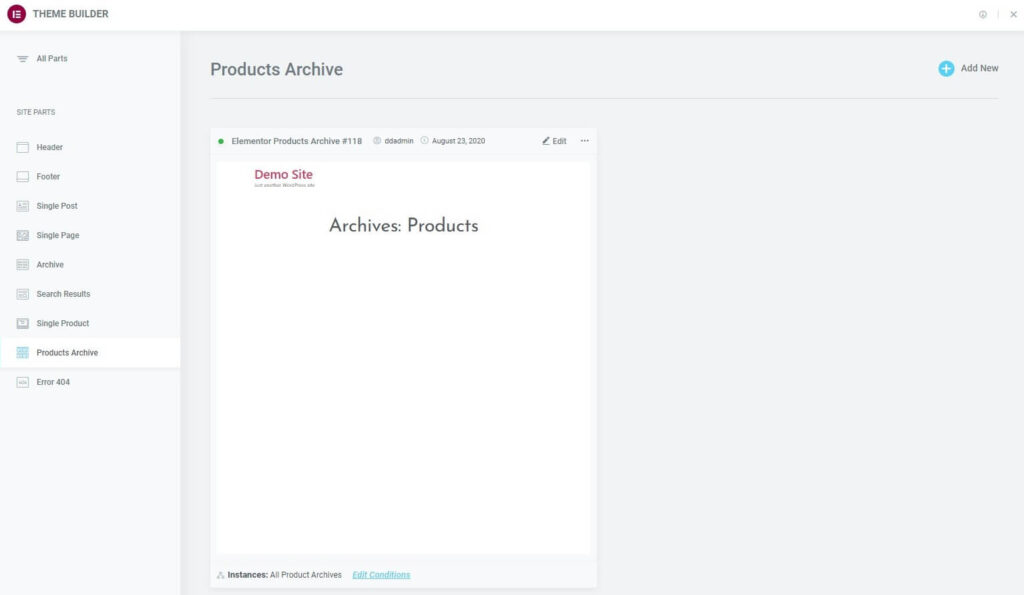
- Open Elementor → Theme Builder → Product Archive and find the template intended for Shop.
- Edit that template and inspect its layout beside the Archive Products widget. Check whether your sidebar or product-filter component is still present and visible at the intended viewport.
- Review the template’s Display Conditions. Elementor documents Include → Shop page separately from conditions for specific product categories. A category-only template will not necessarily control the main Shop.
- View the Shop and one category archive on the frontend. If different templates apply, edit the relevant one rather than duplicating it.
See Elementor’s Product Archive documentation for actual Theme Builder and display-condition screenshots. If you use a third-party Elementor filter widget, follow that widget’s own instructions; it is not identical to WooCommerce’s native Product Filters block.
Sidebar appears on categories, but not on Shop
This usually indicates a difference in the template or layout applied to the two archive types. Open the Shop URL and a product category URL side by side and compare what changes.
- Classic theme: check for separate Shop and category sidebar or layout options.
- Block theme: compare Product Catalog with the relevant Products by Category template, including filter placement and the Product Collection query.
- Elementor Pro: inspect which Product Archive template and display condition matches each URL.
A category page should list products belonging to that category, while Shop normally covers the broader catalog. Do not copy a category-specific product query onto Shop just to recover the sidebar: that can silently hide products.
Sidebar visible, but filters are empty or do not work
A sidebar is only the space that holds controls. If the space exists but its filters do not display or update products, check the following:
- Missing or misplaced block: ensure Product Filters is present in the active block template and connected to the intended Product Collection. For classic themes, verify widgets in the displayed widget area instead.
- No matching data: a Rating Filter needs rated products; attribute filters need assigned product attribute terms. Test with data you know exists.
- Wrong query context: Product Filters beside an inherited archive collection works differently from filters nested in a custom, non-inherited collection.
- Third-party extension conflict: distinguish WooCommerce’s built-in blocks from a separate product-filter plugin; the control panels can be completely different.
- Unexpected page reload: Product Collection → Advanced → Reload full page controls whether filtering reloads the page. A reload is supported behavior and is not proof that filters are broken.
Use a filter that should match several known products. Then remove it. If both the filtered and restored results are correct, the basic query connection is working.
Sidebar missing only on mobile? Check the filter overlay
On smaller screens, filters may deliberately move into a drawer. With the modern WooCommerce Product Filters block, select the parent block and inspect Overlay in the settings sidebar.
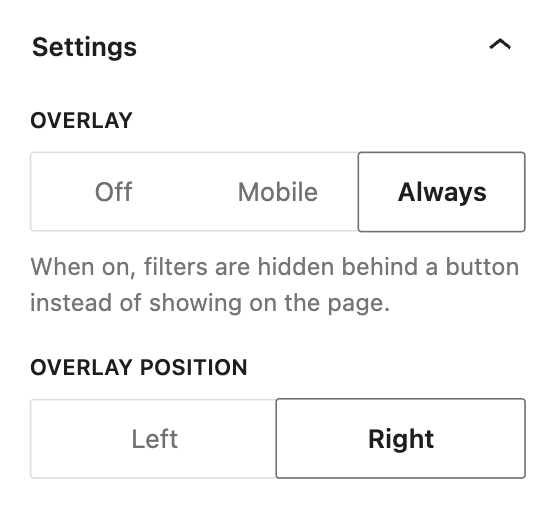
- Off: filters stay in the page layout.
- Mobile: filters appear in an overlay at smaller viewport widths, and inline above that breakpoint.
- Always: filters open in an overlay at every viewport width.
For Mobile or Always, choose whether the drawer opens from the left or right. If your theme or page builder has its own responsive visibility settings, check those separately. The important test is not whether a permanent sidebar is visible on a phone, but whether the shopper can open the controls, filter products and close the panel without getting stuck.
If the sidebar disappeared after an update
- Record which theme, WooCommerce, builder or filter extension changed.
- Clear only the relevant page/CDN caches, then check the Shop in a private browser window.
- Confirm the correct sidebar area or archive template is still assigned and contains its previous controls.
- On staging, isolate theme or plugin conflicts one at a time. Avoid disabling payment or checkout components on a busy live store.
- If your theme overrides WooCommerce templates, review WooCommerce → Status → System status for template warnings and compare outdated files with the current originals before replacing anything.
Restore a backup only after confirming what other site changes it would reverse.
Developer checks when the settings look correct
For a classic theme, inspect the active WooCommerce archive template, the sidebar registration and where the theme renders it. WooCommerce supplies a woocommerce_sidebar hook, but a theme may replace or remove the default callback. A sidebar registered in PHP does not appear unless the template outputs it.
Also note WooCommerce’s documented template priority: a theme’s woocommerce.php can take precedence over woocommerce/archive-product.php. Before changing PHP, confirm which template is actually used. See the classic-theme developer handbook.
For a block theme, inspect Product Collection query inheritance and the Product Filters block context. Test on staging and keep overrides upgrade-safe. Avoid dropping an unverified functions.php snippet into a live store.
Check the result before calling it fixed
Practical pass/fail check: Record the original Shop URL and one category URL, change just one control, and repeat the same test on each URL. A fix passes only when the sidebar or filter control appears and the product list remains correct. If the sidebar still fails on one archive, return to that archive’s specific template instead of applying unrelated fixes.
Use these five checks after saving the change:
- Main Shop: the filter sidebar or control appears where intended, and the expected products are listed.
- Category archive: the correct category products remain visible; the Shop layout change has not damaged other archives.
- Filter behavior: select a known price range, category or attribute; verify matching results and clear the selection.
- Mobile: find and use the filter drawer or stacked controls at a narrow viewport, including a keyboard check if available.
- Fresh session: repeat the test after clearing relevant caches to rule out an old layout.
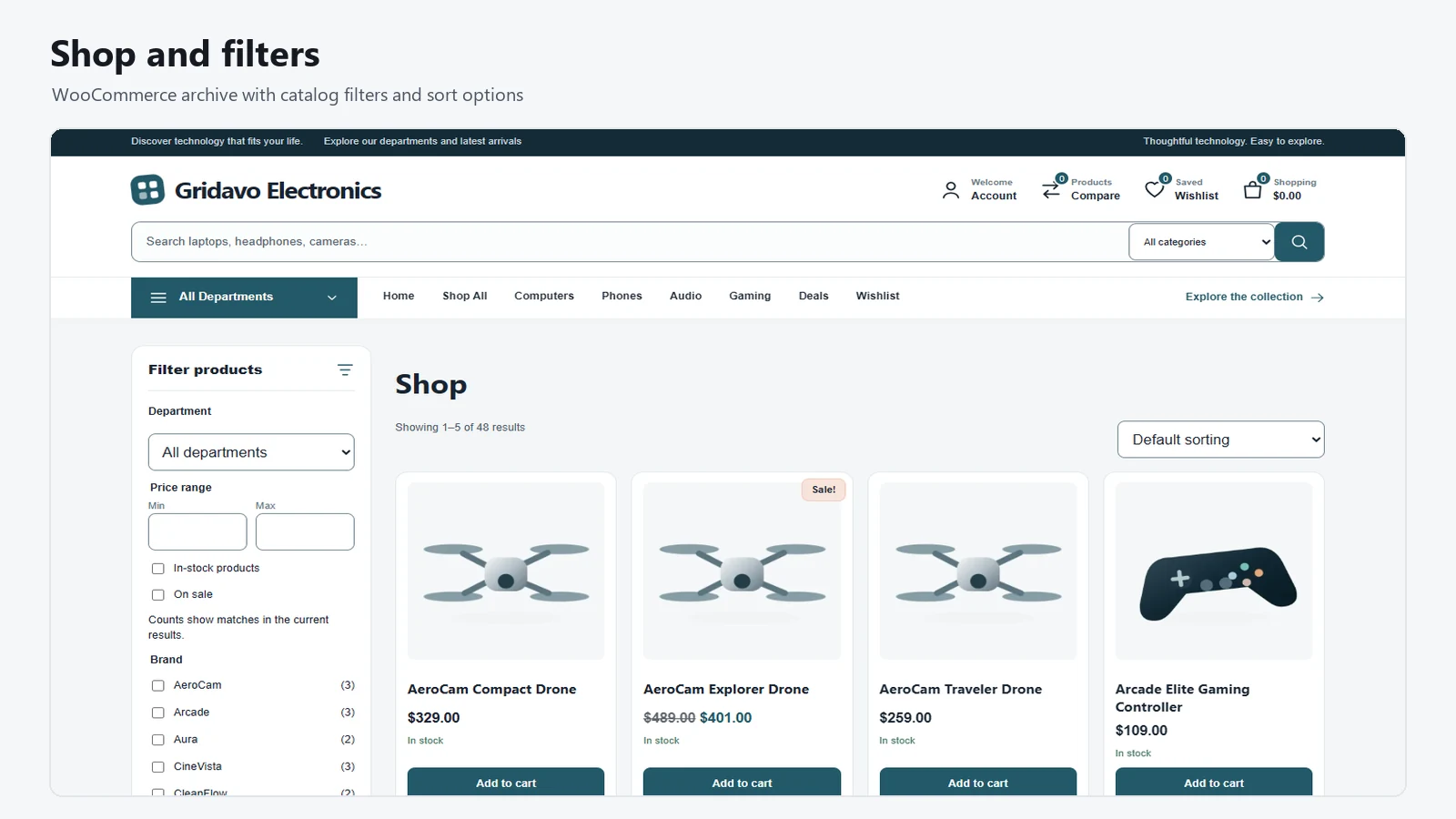
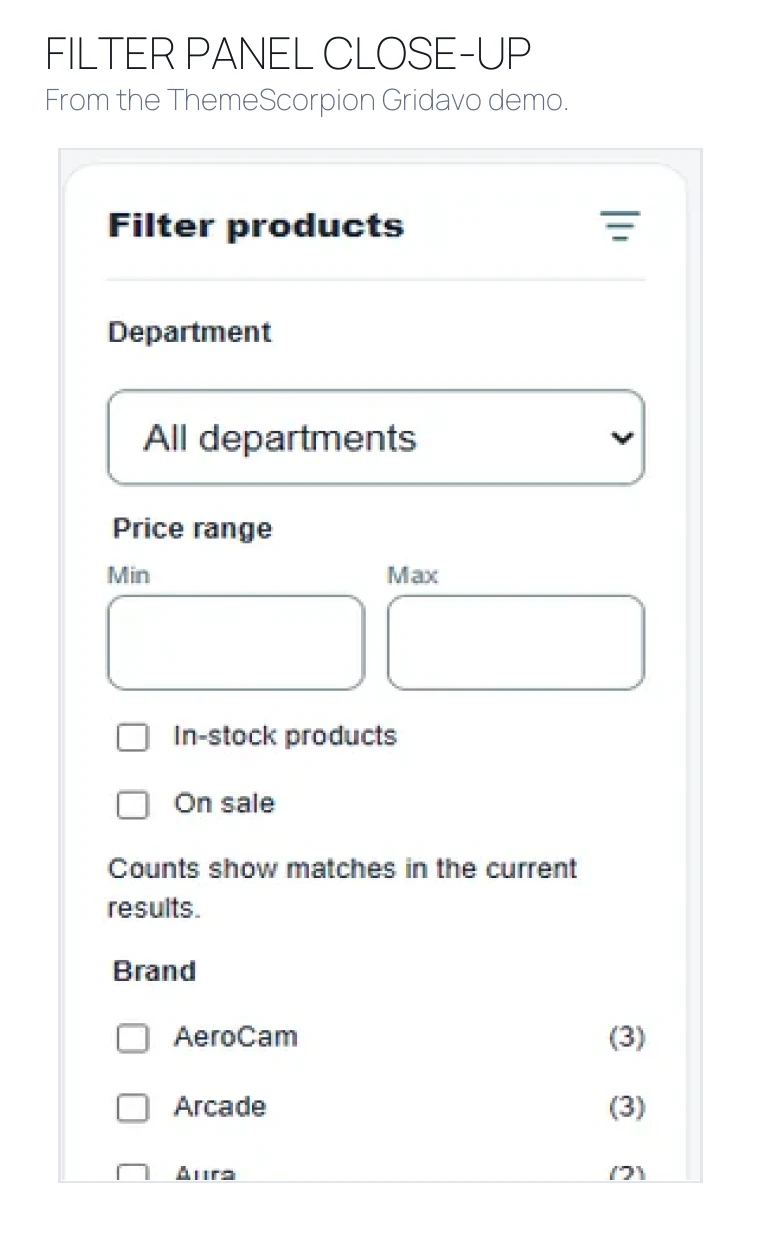
If one test fails, return to the section for that symptom. You should not have to change every setting in this guide.
References and related guides
About the examples: The WordPress, WooCommerce, Astra and Elementor screenshots are references from their respective documentation, while Gridavo is a ThemeScorpion demo storefront. These illustrate where to look; the same steps have not been independently reproduced on every theme or plugin combination. Screens and settings can change with updates.
- WooCommerce: Product Catalog template : official archive navigation and screenshots.
- WooCommerce: Product Filters block : block placement, overlay modes and filter controls.
- WooCommerce: Shop and archive theming : inherited queries, block structure and developer details.
- Elementor: WooCommerce Product Archive : Theme Builder and display conditions.
Once your filters work, our WooCommerce Product Discovery guide covers broader ways to help shoppers find products. For choosing between editing systems, read Site Editor vs. Customizer.